If you are entering a deal of an existing listing click The New Deal from listing button from the deals menu
- You will search for the listing by using address or MLS#
- Once found double click on the listing and go straight to entering the deal information
- If not found then click create new listing at the bottom of the listing finder
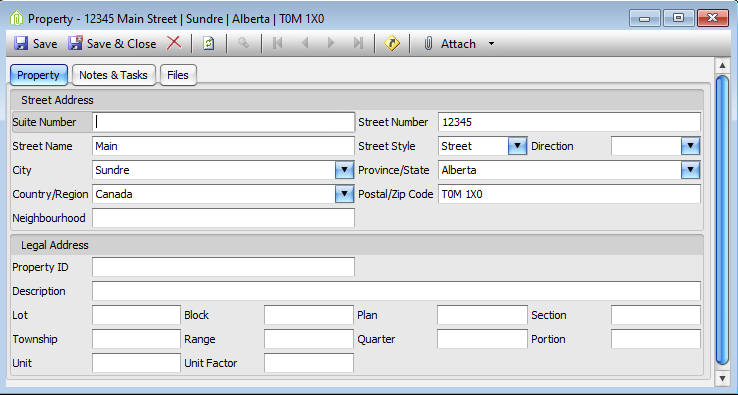
- Enter Property information
- Save & Close Property
If you are entering a new sale not from an existing listing Click on the New Deal button on the deals menu
- Enter Property information
-
-
- Save & Close Property
-
-
Enter the following Deal information:
Deal Tab:
Basic Info
- Reference = assign a deal number If known
- Role = Choose List, Sell, Or Both
- Sale Price = Enter Sale Price on Offer to Purchase
- Sale Date = Enter the Date if the Sale on the offer to Purchase
- Last Condition Date = If there are conditions to be met, Enter the Date of the condition that hat expires last.
- Possession Date = Enter the Possession Date
- Status = Leave pending, or enter the Status the deal, if known
- Firm Date = Will Auto update to the Date that the Status of the deal Is made Final
Listing
- Listing = Will Auto update once the deal is Saved
- Listing Date = Enter listing Date if known
- List Price = Enter List Price If known
- MLS Number = Enter MLS number, if known
- MLS Area = Enter MLS area, if known
- Style = Choose Style (Residential, Condo, Townhouse, Land, etc)
Contacts – List Contacts
- Add sellers by clicking under contact and type in name
- Contact Finder will pop up and add New Individual if not already in the system.
- Enter all relevant information known into the contact finder (Names, address, Postal Code, Phone Fax Etc.)
Agent = Enter the First 3 Letters of the Agents First and Last Name
- Agent should auto populate in the field.
- If there are more than one person in the System With that combination of letters the program will ask you to choose the correct contact.
- If there is no agent in the system, you must request the brokerage administrator to enter the Agent.
- If the Agent is in the System then A Brokerage will auto populate in the company Field.
- If no Brokerage appears, we must enter a company again by entering the first 3 Letters of the first few words of the brokerage’s name.
- The brokerage will then auto populate, you then must ask the brokerage administrator to create the relationship between the agent and the brokerage so that next time this agent is entered it will put that brokerage in the company field automatically.
- If the brokerage does not exist in the system you must request the brokerage administrator to enter the new brokerage.
Lawyer = Enter the First 3 Letters of the Lawyers First and Last Name
- Lawyer should auto populate in the field.
- If there are more than one person in the System With that combination of letters the program will ask you to choose the correct contact.
- If there is no Lawyer in the system, you must request the brokerage administrator to enter the Lawyer.
- If the Lawyer is in the System then a law firm will auto populate in the company Field.
- If no Law Firm appears, we must enter a company again by entering the first 3 Letters of the first few words of the Law Firm’s name.
- The Law Firm will then auto populate you then must ask the brokerage administrator to create the relationship between the Lawyer and the law firm so that the next time this Lawyer is entered it will put that Law irm in the company field automatically.
- If the law firm does not exist in the system you must request the brokerage administrator to enter the new law firm.
Contacts – Sell Contacts
- Repeat the Steps of the List Contacts
Click Save
Commission Receivable Tab:
- Click the Reset to Defaults Button
- Choose From the list of defaults or Choose Custom
- If custom is chosen
- Put in the List and Sell Percentages or flat fees.
- Save
Commission Payable Tab:
- Click the Reset to Defaults Button
- The Payables on list and sell should default from your contacts tab and the receivable tab
- The % Rate column defaults to 100% if there is one agent entered or if more than one agent is entered there is no % defaulted and you must update the split
- If there are Referrals, we must add each Referral.
- Click on the (+) Button under what side of the deal the Referral is on.
- If the Agent referral is from the home brokerage, enter the Agents Name in the Due to and Pay to Columns.
- If the Agent referral is from another brokerage, enter the Agents Name in the Due to Column and the Name of the Brokerage in the Pay to Column.
- Save
Deductions Tab:
Double check all deductions that are to come off are all correct.
Checklist Tab:
Add desired checklists by clicking on the clipboard at the bottom of the left side.
- Select attach.
- Right click and select complete file requirement once you have matching paperwork.
Scan & Attach documents
Save & Close Deal
Comments