Click on the Printer Icon
- Choose Conveyancing
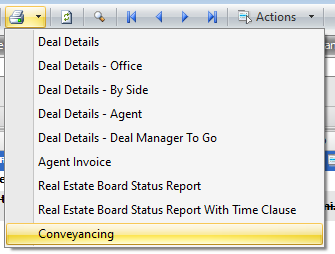
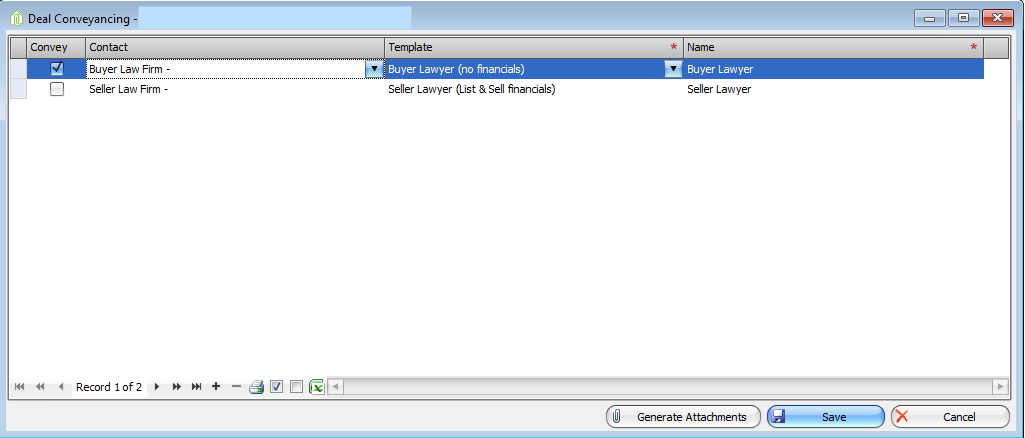
- A list of Default letters and contact for that deal role will pop up
- Select letters you wish to convey
-
- IF NEED BE You can change the letter and contact by using the drop down menu on each field on the line
- IF NEED BE You can add and remove letters by using the + and – buttons
- Once all contacts and letters are correct
- Click the Generate Attachments button
- This attaches the letter to the File Attachments
- You can then open the PDF file from the File Attachments and print, Email or fax right from there
Once the letters are on the File Attachments, you can Merge PDFs into 1 document.
Click the Merge PDF button at the bottom of the File Attachments.

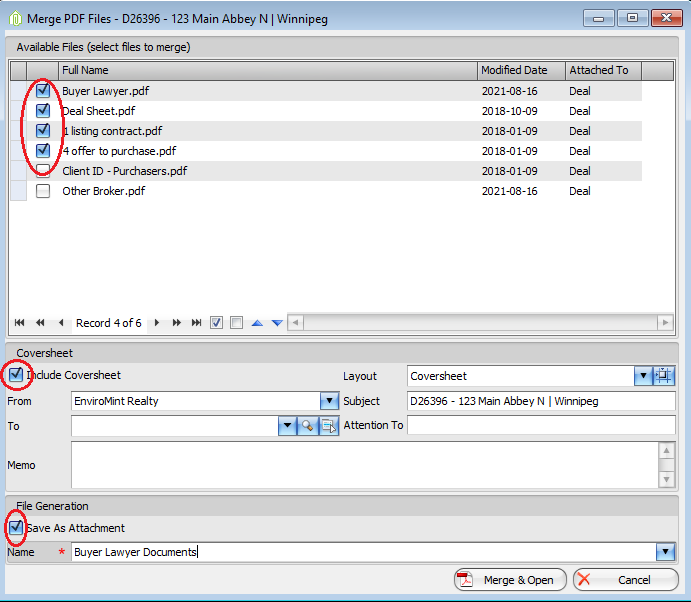
Once Merge PDF opens:
- Click all the files you want to include(First one selected will show first, second will be second and so on)
- You have the option to include a Coversheet. Fill out applicable information
- Save as an attachment & name the file.
- Click Merge & Open.
Comments