Once all supporting files for a deal have been uploaded, you can merge any or all documents into one file for ease of viewing faxing or emailing right from the program
- Open the Deal
- Click on the checklist tab
- In the Files grid click on the merge documents button at the bottom of the grid
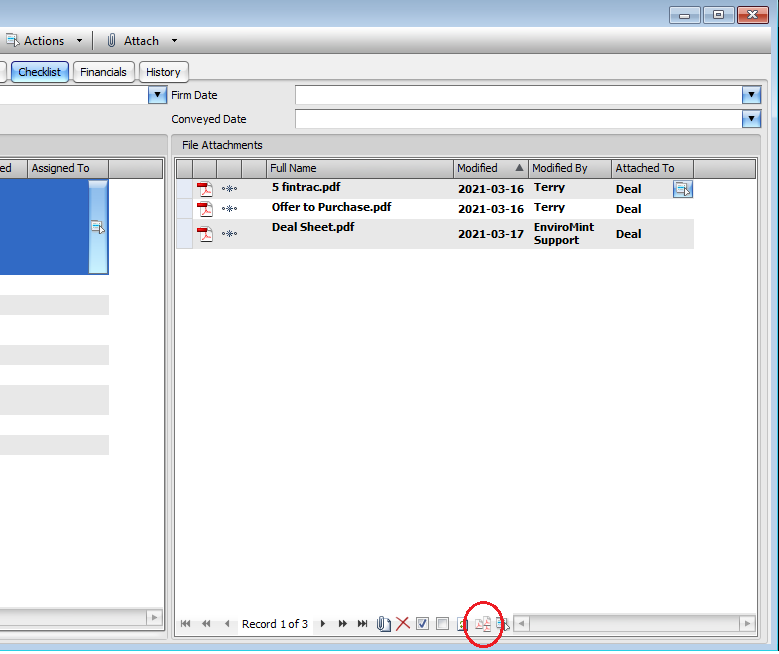
-
- A new Form will open with the available files to merge
- Select the files by checking them on the left
- Or to merge all files click the select all button
- The Order that the files appear on the Selected files side is the order that they will be merged
- So either move them over from the available side in the order you would like them to appear OR
- You can move them up or down on the Selected side by using the blue up and down Buttons
- Once the files are in the appropriate order check the Save As Attachment box
- Choose a Name from the Drop Down list or Type in a Name that the merged files will be called
- IF DESIRED Click Include Coversheet and choose a contact to appear on the coversheet
- Click SAVE
- Your Files are now merged and will appear on the File Attachments List on the Checklist Tab of the deal.
- You can email, fax, or print right from the PDF file one the file is opened
Comments