Search for and open the Deal that needs to be paid out
Step 1 – Receive your payment in the Deal
- Click Action Button --> Receive Payment
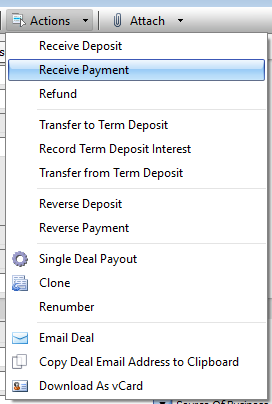
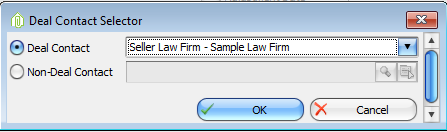
- Choose Contact that the payment is from
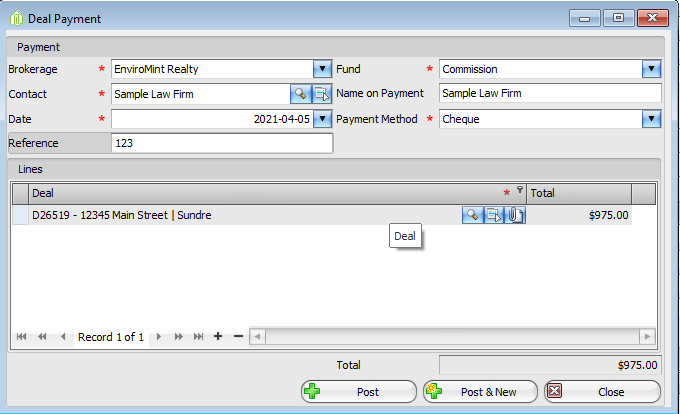
- When the Receive Payment form opens check pre-populated data for accuracy
- Brokerage | Fund | Total | Date | Payment Method
- Enter the Cheque # in the Reference Field
- Click post
If there is no payment to record, simply change the Status of the deal to Completing.
Step 2 – Payout Deal
- Click Action Button --> Single Deal Payout
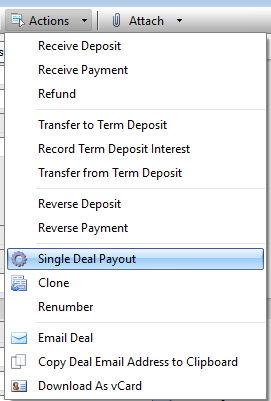
- A Single Deal Payout form will open
- There are 3 Sections to note
- Deal and Trust information at the top
- Deal Payables in the center
- And Agent Deductions at the bottom
- There are 3 Sections to note
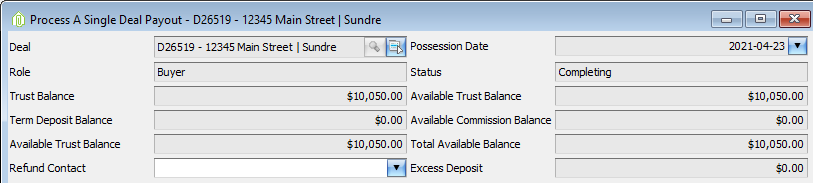
- Deal, Trust and Term Deposit Information – Not Actionable – For information and accuracy purposes only
-
- This is a Snapshot of some key information to payout a deal
- Deal #, Role, Status
- Trust balances, Commission Balances
- Term Deposit balances
- Excess Deposit, Refund Contact
- This is a Snapshot of some key information to payout a deal
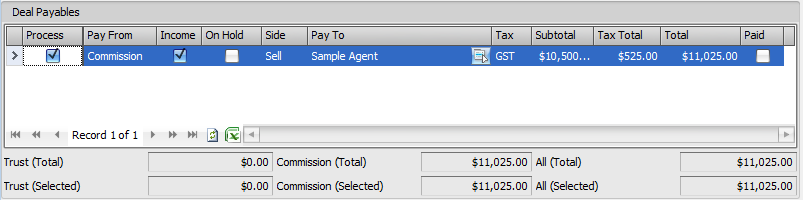
- Deal Payables
- As a Default the Process checkboxes will be checked.
- These will be the monies transferred to your general/commission fund as well as any trust cheques that are required
- As a Default the Process checkboxes will be checked.
- Agent Deductions
- Select all Agents
-
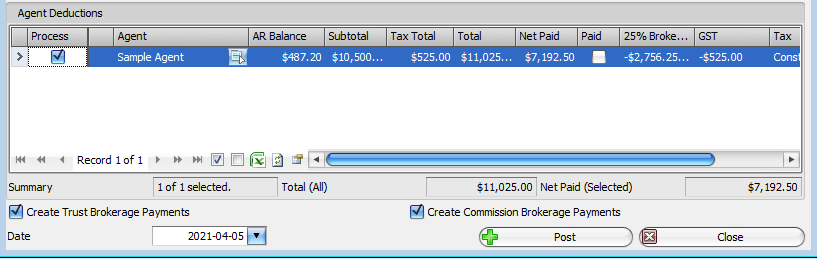
- Default Deductions will appear for each of your agents on the deal
- Double Check deductions for accuracy
- Add, remove or modify deductions where applicable
- At the bottom of the grid select the Deduction Rule Maintenance icon
- The Deduction Rule Maintenance form will open and modify as follows:
- Select or Un-select the deduction checkbox
- Modify the Type to either % of Parent Subtotal, Flat Fee or % of Parent Tax Total
- Modify the Rate with either a percentage or an amount (Type must = Flat Fee to enter an amount)
- Click ok
- Double check the Net Paid Column
- Default Deductions will appear for each of your agents on the deal
- If all Trust and Commission totals are correct Click Post to print cheques
Step 3 – Print Cheques
- Several Print Cheques Forms should automatically open upon posting
- Trust Cheques
- Select all cheques
- Double check Starting Cheque Number
- Close form
- Trust EFT/Direct Deposits (if applicable)
- Select all
- Double check Starting Cheque Number
- Close form
- Commission EFT/Direct Deposits (if applicable)
- Select all
- Double check Starting Cheque Number
- Close form
- Commission Cheques
- Select all cheques
- Double check Starting Cheque Number
- Close form
- Zero Commission Stubs (if applicable)
- Print each stub
- Close Form
- Trust Cheques
Close Single Deal Payout Form
Review Information on the Financial Tab of the Deal
Comments