To open the Customer Batch Invoicing Form
Accounting --> Receivables --> Customer Batch Invoicing
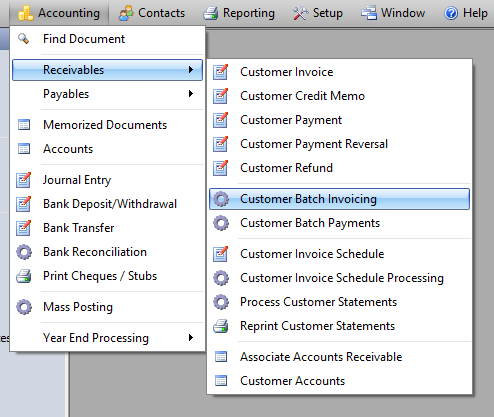
- Enter all fields at the top of the form
- Name = The Name of the template i.e. Postage
- Fund = General/Operating
- Date = Date you want the invoice to be posted
- Reference= what you would like to appear on Agents Statements i.e. June 2013 Postage
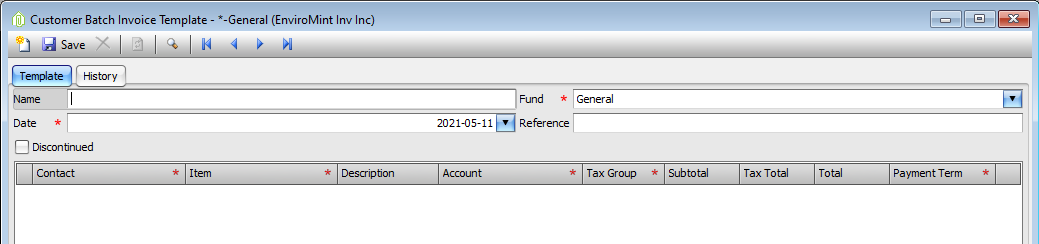
- Add Invoice lines to the grid
- To add All agents
- Click on the Action button at the bottom of the screen and click add all agents
- To add All agents
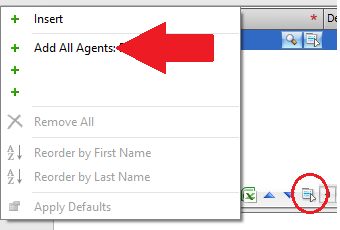
-
- To manually add individual Agents
- Click into the Grid and enter a contact name
- Click below to enter the second agent
- Repeat until all the agents are added
- To manually add individual Agents
To Use Defaults for all the Invoice Lines
- Click on the Action button at the bottom of the grid and choose Apply Defaults
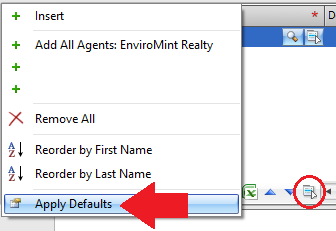
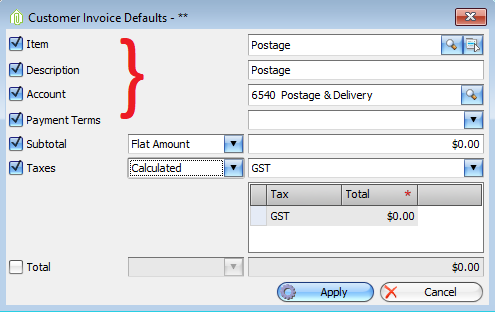
- You can add the same Item, Description, Account, and Payment Term to each Invoice line
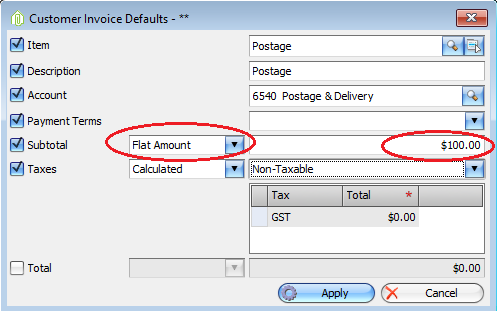
- You can add the same amount to all Invoice lines
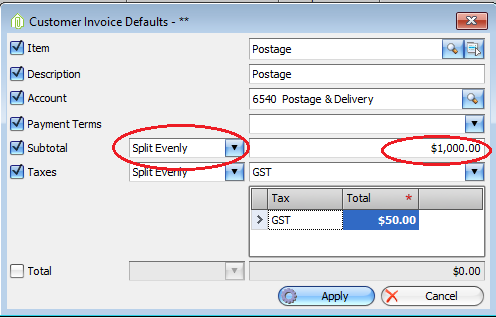
- You can divide the total amount amongst all Invoice lines
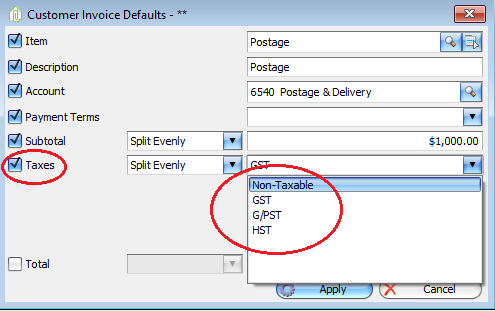
- Apply or not Apply Tax to all Invoice lines
- Once the Defaults are set click Apply
- All your Invoice lines will be updated with the defaults you have selected
Once your Template is accurate Hit the Save Button and the Template will be saved for future use.
To Post This Template click the post button and it will post all the invoices.
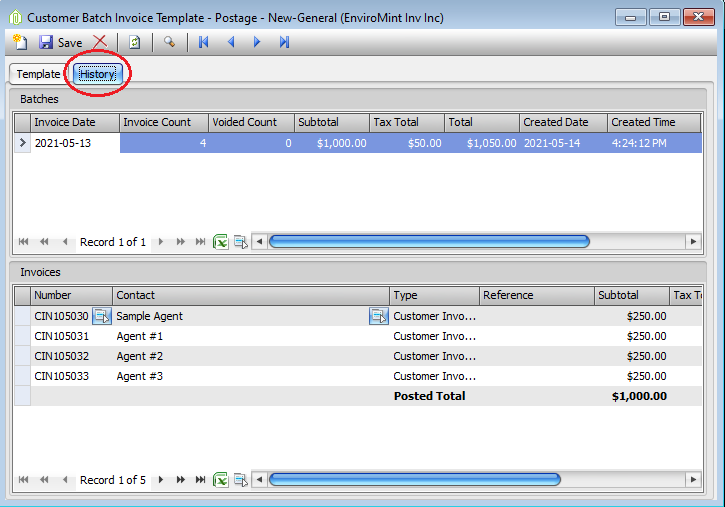
You can see a history of this templates use and all Customer Invoices posted on the History Tab.
To manually enter amounts in the Invoice lines you must enter each field individually
- Item = Item to be invoiced i.e. Postage
- Description = Description of the charge (this will appear on their statements)
- Account = Should default to the Item being invoiced
- Choose GST/HST or Non-Taxable
- Enter the Subtotal for that agent
- Modify the GST/HST if applicable
- Enter a Payment Term
- Repeat for every invoice line
Comments