From the Accounting Menu --> Payables --> Vendor Invoice
- Enter the appropriate brokerage
- Enter the appropriate Fund (Trust, Commission, or Operating/General)
- Enter the Vendor you wish to pay
- Enter the Appropriate account for the Vendor you wish to pay
- Date = the date of the Invoice, or the first of the month if the date of the invoice is in a previous month.
- Reference = The Invoice #
- Choose the payment term (should default if there is a payment term in the Vendor account)
- Enter a due date (should default if there is a payment term in the Vendor account)
In the Lines Grid
- Add a line
- Enter the account #
- Enter a description of the Charge
- Choose GST/HST or Non-Taxable
- Enter the Amount before GST in the subtotal
- Modify the tax amount if necessary
- Click the Billable check mark on the line if applicable
- Repeat if there are other accounts that are involved
The Total Should be the Amount of charged on the Invoice
Then Click on the line that is billable, and then click on the Billable Lines Tab
To manually add agents
- Click the Plus (+) button at the bottom of the grid until there is enough lines for all the agents you want to bill.
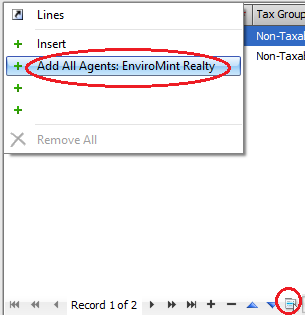
To add all agents to the billable lines tab
- Click on the Action button at the bottom of the screen and click add all agents
To manually enter amounts in the lines
- Description will default to the description on the Lines Tab
- You can change it to reflect how you want the description to appear on the Agents Bill
- Choose GST/HST or Non-Taxable
- Enter the Subtotal for that agent
- Modify the GST/HST if applicable
- Make sure the date is the date in which you are going to bill this agent for (i.e. the next customer statement period)
- Make sure the Unbilled total is 0
To Use Defaults for all the Billable Lines
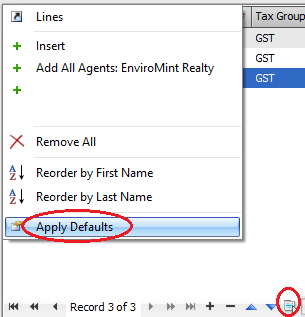
- Click on the Action button at the bottom of the grid and choose Apply Defaults
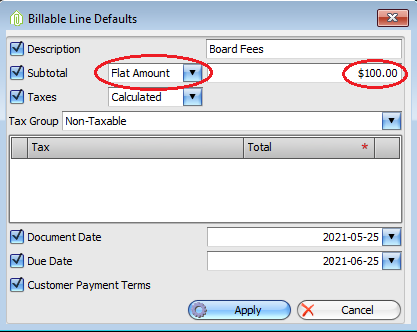
- You can add the same amount to all billable lines
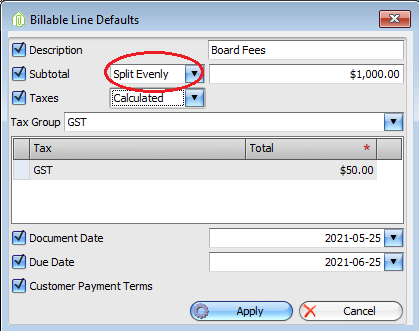
- You can divide the total billable amount amongst all billable lines
- Apply or not Apply Tax to all Billable lines
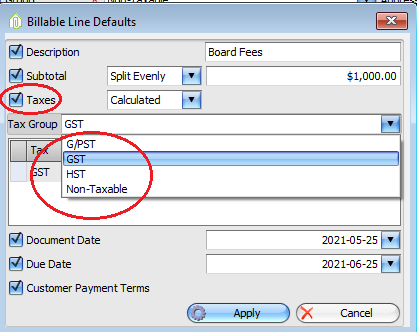
- Once Defaults are Set Hit Apply
- And all your billable lines will be updated with the defaults you have selected
Once Billable lines tab is complete and your unbilled total is 0 you can Post the invoice.
Click Post
Scan and attach Documents if there are any.
Comments