Open the T4A Processing Area

From the Accounting menu to the Menu.
- Select Year-End Processing.
- Click Create T4A Slips.
Access the Current T4A Form
- In the list of T4A slips, Click to the last record.
- Open it to view the most current T4A processing form.
Select the Agent to Update

- In the T4A form, locate the Agent field.
- Click on the agent whose SIN needs updating.
Edit the Contact Record
- In the Contact field, click the Action button.
- Choose Open Relationship from the available menu options.

Update the Residential Location
- In the relationship window, select Residential Location.
- Pick the correct location from the available list.
Important Note:
If no residential locations appear, this means the contact record does not have an address on file.
- Go to the Contact tab for that agent.
- Update their address there.
- Return to the relationship screen—Residential Location options should now appear.
Refresh and Save the T4A Form
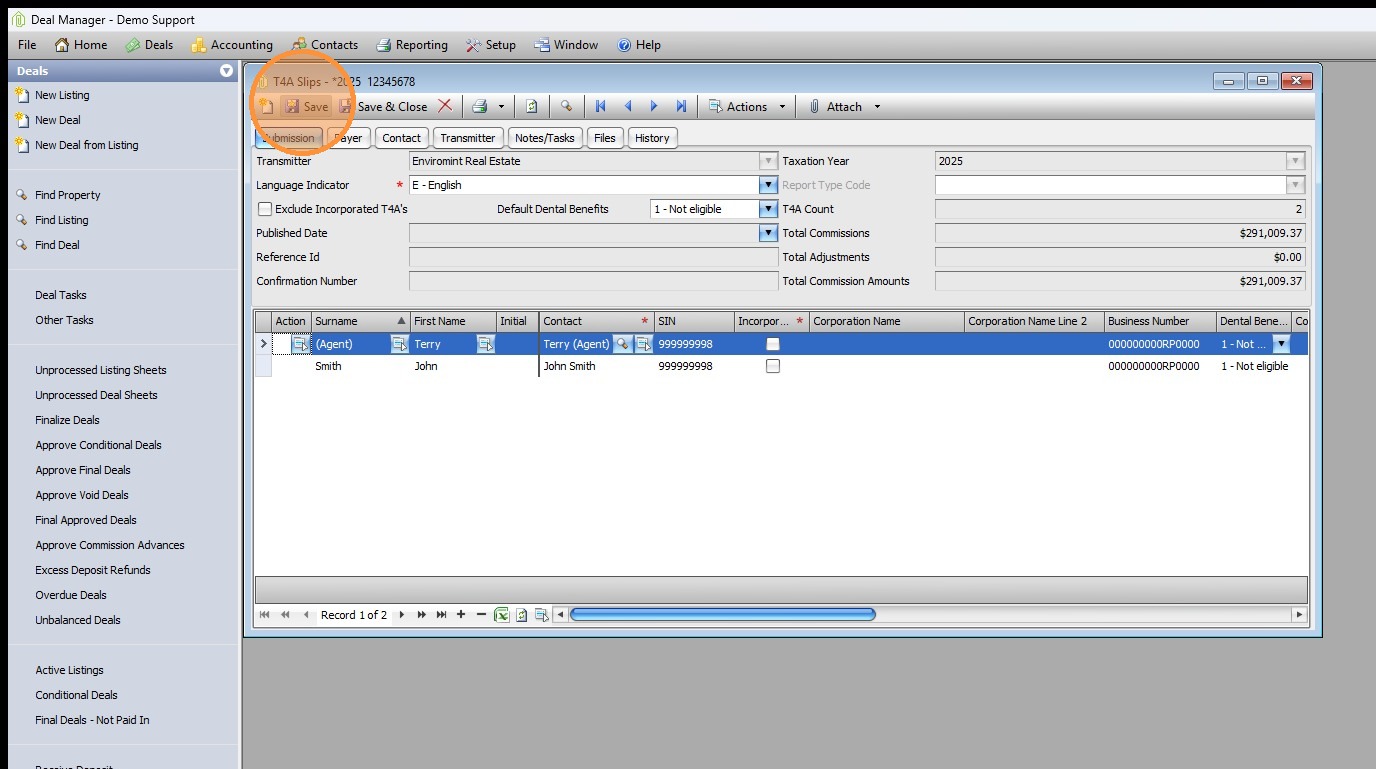
- Return to the T4A processing form.
- The form should auto-update with the new Address.
- Click Save to finalize the updated T4A slip.
Comments