When you have completed your deal payouts at the end of every month you can send your monthly Financial Reporting System File to Royal LePage by following the steps below.
Note: If this is your first time uploading your file you will need to contact Support@EnviroMint.com for assistance. You will also need to contact Royal LePage to receive your brokerage ID and secret.
Step 1: Review Agent Aliases
Open the form: Setup -> Deals -> Royal LePage Upload Setup
- Click on Actions -> Step 1: Review Agent Aliases
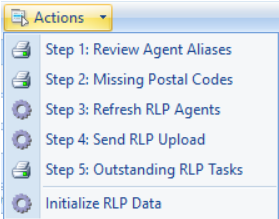
- Check to make sure you have an Alias in the first column of the report for each of your agents
- The Alias should be the same as Royal LePage’s Financial Reporting System’s Back Office Number
- If an agent is missing an Alias or it needs to be changed, you can do that by opening their contact form and updating the Alias field.
- You do not need to enter all the leading 0’s that are in the Financial Reporting System’s Back Office Number.
- If the Financial Reporting System does not have a Back Office Number for an agent you will need to enter a unique number into the Financial Reporting System and enter the same number into Deal Manager.

Step 2: Missing Postal Codes
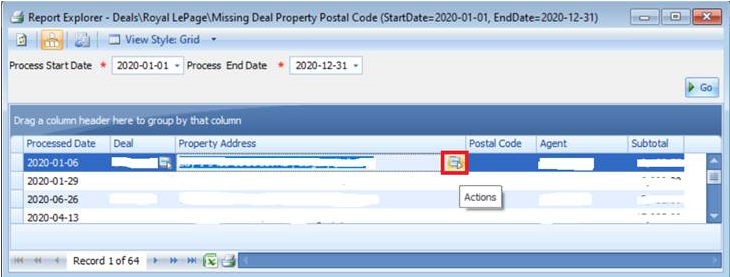
Click on Actions -> Step 2: Missing Postal Codes
- If there are any deals returned on this report you will need to update their postal codes by:
- Opening each Property from the action button at the right end of the Property Address field
- Enter the missing Postal Code, Save & Close
- Click on Go when you have updated all Postal Codes to check the list is now empty
Step 3: Refresh RLP Agents
Click on Actions -> Step 3: Refresh RLP Agents
Step 4: Send RLP Upload
Click on Actions -> Step 4: Send RLP Upload
- It may take a few minutes for this process to finish in Deal Manager
- It may take 60 minutes or more for your results to appear in Royal LePage’s Financial Reporting System
- Once they appear you can view them here:
- rlpNetwork -> Managing -> Financial Reporting -> Excel Exports ->
- Agent Commission Summary
- Agent Commission Details
- Note: make sure you run with All Locations
Step 5: Outstanding RLP Tasks
Click on Actions -> Step 5: Outstanding RLP Tasks
- The Royal LePage reporting system may return problems with your upload that you can find and fix from this report. There are 3 types:
- (BRES) Agent not mapped for Brookfield Real Estate Services Financial Reporting System.
- Open up the Agent in the Attached To column and enter the Financial Reporting System’s Back Office Number in the Alias field
- Delete the task in the contact’s Notes & Tasks tab and close the contact
- (BRES) Postal Code for the Deal address is required for Brookfield Real Estate Services Financial Reporting System.
- Open up the Deal in the Attached To column and enter the Postal Code in the property
- Delete the task in the deal’s Checklist tab and close the deal
- (BRES) Unhandled Exception: The remote server returned an error: (400) Bad Request./"Trade number D200001 already exists for this company. UserName: testadmin"
- Open up the Deal in the Attached To column
- Delete the task in the deal’s Checklist tab and close the deal
- Note: You will still need to re-Send RLP Upload for this deal even though you made no change.
- There is a timing issue in the Financial Reporting System’s upload that sometimes requires a 2nd upload when a commission has been voided and re-paid
- Repeat Step 3, 4 & 5 until there are no more tasks on this list
Comments