One Time Initialization Steps:
Step 1: Review Agent Aliases
Open the form: Setup -> Deals -> Royal LePage Upload Setup
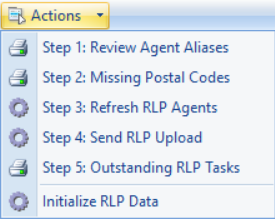
Click on Actions -> Step 1: Review Agent Aliases
- Check to make sure you have an Alias in the first column of the report for each of your agents
- The Alias should be the same as Royal LePage’s Financial Reporting System’s Back Office Number
- If an agent is missing an Alias or it needs to be changed, you can do that by opening their contact form and updating the Alias field.
- You do not need to enter all the leading 0’s that are in the Financial Reporting System Back Office Number.
- If the Financial Reporting System does not have a Back Office Number for an agent you will need to enter a unique number into the Financial Reporting System and enter the same number into Deal Manager.

Step 2: Missing Postal Codes
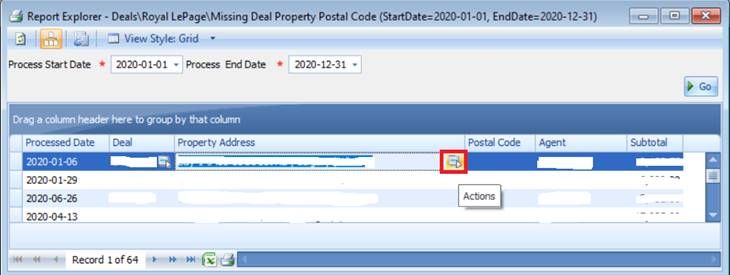
Click on Actions -> Step 2: Missing Postal Codes
- If there are any deals returned on this report you will need to update their postal codes by:
- Opening each Property from the action button at the right end of the Property Address field
- Enter the missing Postal Code, Save & Close
- Click on Go when you have updated all Postal Codes to check the list is now empty
Step 2b: Contact Royal LePage’s Financial Reporting System Support
Obtain the following:
- Company Id
- User Name
- Secret
Step 2c: Contact Deal Manager Support
Contact Support@EnviroMint.com to assist with the remainder of your initialization process.
- Open the form: Setup -> Deals -> Royal LePage Upload Setup
- Click on Enabled & Save – this can only be done by Support@EnviroMint.com
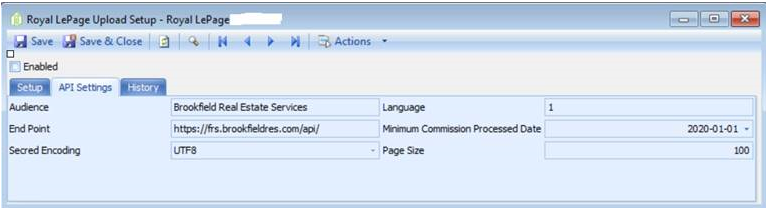
- Verify the following in the API Settings tab:
- Audience: Brookfield Real Estate Services
- Language: 1
- End Point: https://rlp-frs.rlpnetwork.com/external/api/
- Use this one & not the End Point in the screen shot
- Minimum Commission Processed Date: Enter the start date for paid out commissions to be uploaded
- Secret Encoding: UTF8
- Page Size: 100
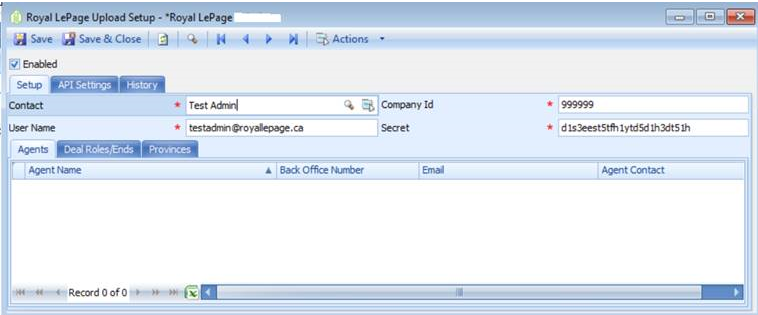
- Enter the following on the Setup tab & Save: this can be done by the brokerage administrator
- Contact: the brokerage user that will be managing the upload and completing tasks
- Company Id: provided by Royal LePage in Step 3
- User Name: provided by Royal LePage in Step 3
- Secret: provided by Royal LePage in Step 3
Step 3: Refresh RLP Agents
Click on Actions -> Step 3: Refresh RLP Agents
- Click on Deal Roles/Ends and select a Trade End & Trade Type from the drop downs for each Deal Role displayed
- Save
Step 3b: Initialize RLP Data
This action is only ever done once and can only be done by Support@EnviroMint.com
Click on Actions -> Initialize RLP Data
- Based on your Minimum Commission Processed Date on the API Settings tab it will create a list of all deals that will be sent to Royal LePage’s Financial Reporting System. It does NOT send them yet.
- Click on the History tab to see how many deals were initialized
Step 4: Send RLP Upload
Click on Actions -> Send RLP Upload
- It may take a few minutes for this process to finish
- Click on the History tab to see how many deals were updated to Royal LePage’s Financial Reporting System
- It may take 60 minutes or more for your results to appear in Royal LePage’s Financial Reporting System
- Once they appear you can view them here:
- rlpNetwork -> Managing -> Financial Reporting -> Excel Exports ->
- Agent Commission Summary
- Agent Commission Details
- Note: make sure you run with All Locations
Step 5: Outstanding RLP Tasks
Click on Actions -> Step 5: Outstanding RLP Tasks
- The Royal LePage reporting system may return problems with your upload that you can find and fix from this report. There are 3 types:
- (BRES) Agent not mapped for Brookfield Real Estate Services Financial Reporting System.
- Open up the Agent in the Attached To column and enter the Financial Reporting System’s Back Office Number in the Alias field
- Delete the task in the contact’s Notes & Tasks tab and close the contact
- (BRES) Postal Code for the Deal address is required for Brookfield Real Estate Services Financial Reporting System.
- Open up the Deal in the Attached To column and enter the Postal Code in the property
- Delete the task in the deal’s Checklist tab and close the deal
- (BRES) Unhandled Exception: The remote server returned an error: (400) Bad Request./"Trade number D200001 already exists for this company. UserName: testadmin"
- Open up the Deal in the Attached To column
- Delete the task in the deal’s Checklist tab and close the deal
- Note: You will still need to re-Send RLP Upload for this deal even though you made no change.
- There is a timing issue in the Financial Reporting System’s upload that sometimes requires a 2nd upload when a commission has been voided and re-paid
- Repeat Step 3, 4 & 5 until there are no more tasks on this list
Comments